I recently encountered a database that consisted of one .mdf file and seven .ndf files. Although this configuration is not uncommon in older systems, it is no longer necessary in most modern environments. The workload was not pushing any storage limits, and the underlying disk was modern enough to handle a single data file without issue. Therefore, the objective was to restore the database as-is and then consolidate the files into a single file.
Historically, SQL Server implementations utilized multiple data files to distribute I/O across spinning disk volumes, which provided performance benefits at the time. However, with the advent of SSDs and SANs, the advantage of using multiple data files is typically smaller or negligible, and the overhead of managing multiple files can outweigh any potential benefits.
Here’s the approach I used, along with a reproducible lab environment for testing.
Why This Database Had Eight Files
SQL Server stores data inside filegroups, which are made up of logical files that point to the actual .mdf or .ndf files on disk. When you restore a backup, SQL Server expects every file in that backup to exist. There’s no way to merge files during the restore itself. You have to bring the database online first, then consolidate afterward.
I prefer to collapse files when they’re just leftover structure from an older environment:
- You’re no longer on spinning rust.
- There’s no real multi-volume layout behind them anymore.
- The additional files create unnecessary complexity for backup operations, monitoring, and restore procedures.
Multiple data files still make sense in some scenarios (TempDB, multiple storage tiers, massive OLTP), but in a lot of line-of-business systems they’re just historical clutter.
Demo Setup: Build a Playground With Multiple Data Files
Here’s a self-contained lab script you can run on a dev instance. It creates a database with one MDF and three NDFs, loads some data, and gives you something to merge.
USE master;
GO

IF DB_ID('DemoMergeFiles') IS NOT NULL
BEGIN
    ALTER DATABASE DemoMergeFiles SET SINGLE_USER WITH ROLLBACK IMMEDIATE;
    DROP DATABASE DemoMergeFiles;
END
GO

CREATE DATABASE DemoMergeFiles
ON PRIMARY
(
    NAME = N'DemoMergeFiles_Primary',
    FILENAME = N'F:\SQLData\DemoMergeFiles_Primary.mdf',
    SIZE = 200MB,
    FILEGROWTH = 50MB
),
(
    NAME = N'DemoMergeFiles_NDF1',
    FILENAME = N'F:\SQLData\DemoMergeFiles_NDF1.ndf',
    SIZE = 200MB,
    FILEGROWTH = 50MB
),
(
    NAME = N'DemoMergeFiles_NDF2',
    FILENAME = N'F:\SQLData\DemoMergeFiles_NDF2.ndf',
    SIZE = 200MB,
    FILEGROWTH = 50MB
),
(
    NAME = N'DemoMergeFiles_NDF3',
    FILENAME = N'F:\SQLData\DemoMergeFiles_NDF3.ndf',
    SIZE = 200MB,
    FILEGROWTH = 50MB
)
LOG ON
(
    NAME = N'DemoMergeFiles_Log',
    FILENAME = N'F:\SQLData\DemoMergeFiles_Log.ldf',
    SIZE = 200MB,
    FILEGROWTH = 50MB
);
GO

ALTER DATABASE DemoMergeFiles SET RECOVERY SIMPLE;
GO
Adjust paths to match wherever your instance keeps data and log files.
Load Some Data So The Files Actually Get Used
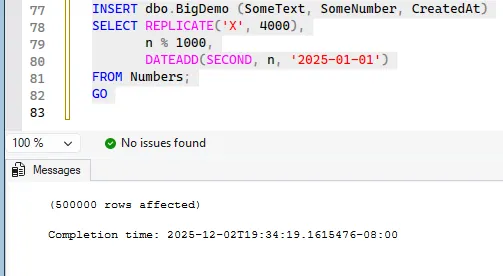
Now we populate data to ensure files are utilized. This table is designed with a wide structure to distribute pages across the filegroup.
USE DemoMergeFiles;
GO

IF OBJECT_ID('dbo.BigDemo', 'U') IS NOT NULL
    DROP TABLE dbo.BigDemo;
GO

CREATE TABLE dbo.BigDemo
(
    Id INT IDENTITY(1,1) PRIMARY KEY CLUSTERED,
    SomeText CHAR(4000) NOT NULL,
    SomeNumber INT NOT NULL,
    CreatedAt DATETIME2 NOT NULL
);
GO

-- Adjust this to make EMPTYFILE take longer or shorter.
DECLARE @TargetRows INT = 500000;

WITH Numbers AS
(
    SELECT TOP (@TargetRows)
           ROW_NUMBER() OVER (ORDER BY (SELECT NULL)) AS n
    FROM sys.all_objects AS a
    CROSS JOIN sys.all_objects AS b
)
INSERT dbo.BigDemo (SomeText, SomeNumber, CreatedAt)
SELECT REPLICATE('X', 4000),
       n % 1000,
       DATEADD(SECOND, n, '2025-01-01')
FROM Numbers;
GO
On my test system, half a million rows provides sufficient data distribution across all files without requiring excessive processing time.
Determine File Usage Patterns
After restoration (or demo setup), the initial step is to analyze the file layout and actual space utilization per file.
USE DemoMergeFiles;
GO

SELECT  name,
        type_desc,
        physical_name,
        size * 8 / 1024 AS SizeMB,
        FILEPROPERTY(name, 'SpaceUsed') * 8 / 1024 AS UsedMB
FROM sys.database_files;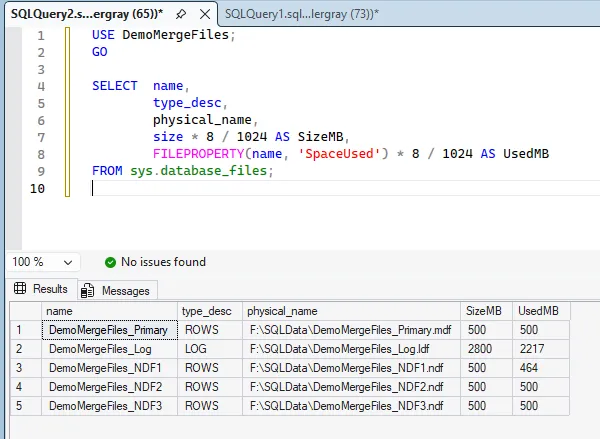
Pre-Migration Safety Preparations
In production environments, I perform several preparatory steps before modifying file structures:
- Ensure recent backups are available and restorable.
- Transition to SIMPLE recovery model if appropriate.
- Schedule operations during periods of minimal I/O impact.
In this demo we already set the database to SIMPLE. If you’re starting from a restore in FULL, this is roughly what I’d do:
ALTER DATABASE DemoMergeFiles SET RECOVERY SIMPLE;
GO
In production, I also inform stakeholders that this operation will be resource-intensive and fully logged, even in SIMPLE recovery mode. The database remains online, but EMPTYFILE operations require significant time.
Move Pages With EMPTYFILE
To consolidate files within a filegroup, we systematically migrate all pages from target files to remaining files in the group.
The core commands for a single file look like this:
USE DemoMergeFiles;
GO

DBCC SHRINKFILE (N'DemoMergeFiles_NDF3', EMPTYFILE);
GO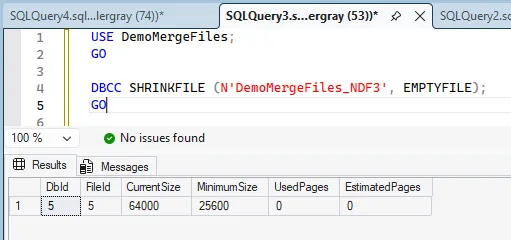
The subsequent cleanup command is:
ALTER DATABASE DemoMergeFiles
REMOVE FILE DemoMergeFiles_NDF3;
GO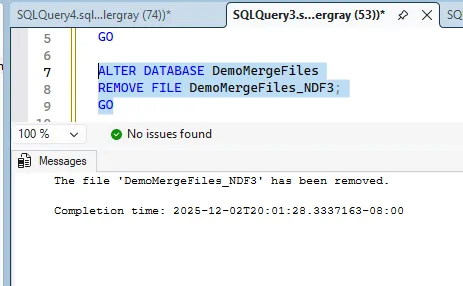
Behind the scenes, EMPTYFILE walks the file page-by-page, moving allocations into other files in the same filegroup. It’s fully logged and single-threaded.
Monitoring Data Page Migration Progress
EMPTYFILE operates slowly and provides minimal progress feedback in the Messages tab. To monitor operation status, I query sys.dm_exec_requests.
SELECT  session_id,
        command,
        status,
        percent_complete,
        start_time,
        total_elapsed_time,
        wait_type,
        wait_time,
        last_wait_type,
        cpu_time,
        reads,
        writes
FROM sys.dm_exec_requests
WHERE command LIKE '%DBCC%';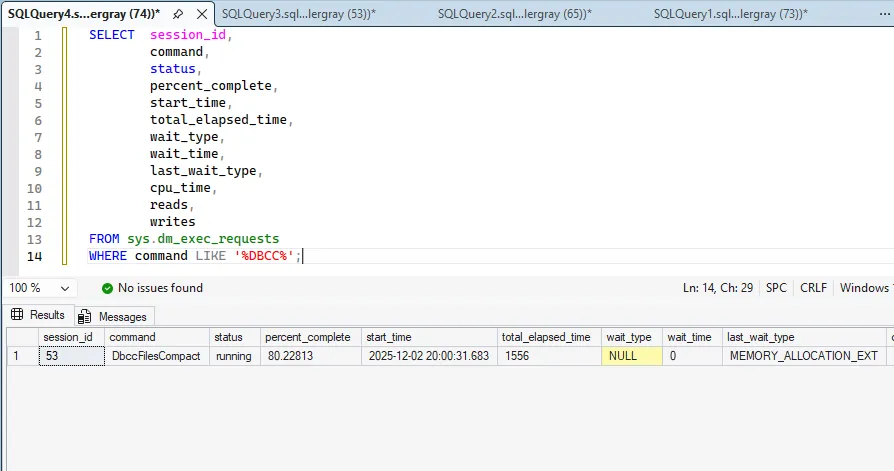
In the demo environment, this operation may complete quickly depending on row count. For extended testing, increase @TargetRows in the initial data load to provide more work for EMPTYFILE.
In one production scenario, a ~220 GB NDF required approximately three hours to complete migration. While this operation runs online, I recommend scheduling during maintenance windows to minimize performance impact.
Remove The Emptied File
Following successful EMPTYFILE completion, the target file contains no allocated pages and can be removed from the database. After file removal, verify the updated layout:
SELECT  name,
        type_desc,
        physical_name,
        size * 8 / 1024 AS SizeMB,
        FILEPROPERTY(name, 'SpaceUsed') * 8 / 1024 AS UsedMB
FROM sys.database_files;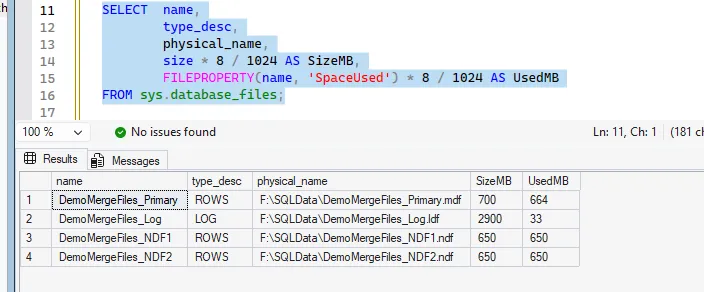
In production environments, repeat the “EMPTYFILE + REMOVE FILE” sequence for each secondary file scheduled for removal.
Post-Migration Validation
Following file consolidation, I perform comprehensive validation:
- Check the file layout again.
- Run
DBCC CHECKDB. - Take a fresh full backup if you have time.
- Switch recovery model back to whatever it should be.
-- Sanity check
DBCC CHECKDB (N'DemoMergeFiles') WITH NO_INFOMSGS;
GO

-- Reset database back to FULL
ALTER DATABASE DemoMergeFiles SET RECOVERY FULL;
GO
Production Environment Considerations
- Pre-growing destination files does not accelerate
EMPTYFILEoperations. While this prevents autogrowth events, page migration remains single-threaded and fully logged. - Maintaining FULL recovery model during migration can lead to substantial log growth. In one instance involving a ~400 GB database, the transaction log expanded from ~20 GB to nearly 200 GB before I terminated the operation.
- Performance improvements from file consolidation are typically not measurable in these scenarios. The primary benefit is reduced administrative overhead.
When Multiple Data Files Are Still Worth It
To clarify, this approach is not intended for universal .ndf removal:
- TempDB absolutely benefits from multiple files in many environments.
- Very large databases spanning multiple volumes might still need multiple files per filegroup.
- Partition schemes and archival strategies sometimes lean on separate files for a reason.
File consolidation requires significant time, but this overhead is typically incurred only once. The result is simplified administration with a single data file instead of multiple secondary files, reducing complexity during maintenance and restore operations.
None of this makes the server magically faster tomorrow. It just reduces operational complexity. If you want to demonstrate this for your team or capture screenshots for documentation, the DemoMergeFiles database above provides a safe way to show the entire process end-to-end without affecting production systems.