I logged into a Windows server today to modify the startup parameters when I was met with this error:
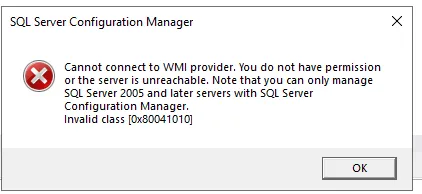
“Cannot connect to WMI provider. You do not have permissions or the server is unreachable. Note that you can only manage SQL Server 2005 and later servers with SQL Server Configuration Manager Invalid class [0x80041010]”
As the error suggests, the SQL Server Configuration Manager could not connect to the WMI provider. The Windows Management Instrumentation (WMI) is responsible for reporting the status of the SQL Server services to the Configuration Manager. This should get configured automatically during the install, but sometimes this part of the install can fail to complete, and SQL Server may or may not report it.
To fix this and regain access to the SQL Server Configuration Manager, you need to recompile the provider using the mofcomp command.
I did this by opening an elevated Command Prompt and changing the directory to the SQL Server shared directory for my version. In my case, it was a SQL Server 2022 build, and therefor I used:
cd "C:\Program Files (x86)\Microsoft SQL Server\160\Shared"Before I ran the command to recompile the provider, I ran this to find the .mof file in the directory:
dir *.mofThe only reason I recommend doing this is because apparently the name of the file is different amongst different versions of SQL Server. I saw sqlmgmproviderxpsp2up.mof used in a different doc, so be on the lookout for that one. Anyway, since SQL Server ships with the .mof file, you should find only one instance in this directory. If nothing shows up here, you’re left with needing to run a repair on the SQL Server installation via Control Panel > Program > SQL Server > Repair
After identifying the appropriate .mof file, you can finally recompile the provider using the mofcomp command. This is what I ran:
mofcomp sqlmgmprovider.mofAt this point, the problem was fixed for me, but Microsoft’s documentation suggests you need to restart the WMI service for the change to go into effect. So if the issue persists, you can restart the service using this command in PowerShell:
Get-Service winmgmt | Restart-Service -ForceRestarting the WMI service should only take a few seconds and it doesn’t impact SQL Server, active connections, or running queries. The only thing at risk is anything polling via WMI at that exact moment. I found some monitoring agents, PowerShell calls, and performance counters all use WMI, so it’s worth doing this during a low-activity window or a maintenance window if you’re doing this on a production server.