Someone came to me today asking for tips on migrating a large database backup from one server to another. In my experience, the ideal way to do this is to break the database backup in “parts”, and upload them via an SFTP server or cloud storageanywhere that both servers can access. There are three reasons why I think splitting backups into multiple files is better when you’re dealing with multi-terabyte database backup transfers.
- Parallelism - Many SFTP and cloud storage solutions offer functionality to allow for multiple uploads at once. When you’re trying to upload one large file (unless you’re limited by your network connection speeds) you could be waiting 10x or more longer than if you were to upload multiple files at once.
- Resumability - I’ve written in the past how network connections can be unreliable, so having your backup in chunks means if your VPN connection drops, you won’t have to restart your upload from the beginning.
- Size restrictions - Some corporate SFTPs have size limitations for single file uploads. This is a unique way to get around those upload size restrictions if your backups exceed them.
The three different ways to accomplish this task are: SQL Server native split, PowerShell, and 7-Zip.
SQL Server Native Split Backup
SQL Server can write a single backup across multiple files natively. Add multiple DISK targets to the BACKUP command:
BACKUP DATABASE AdventureWorks2025
TO DISK = 'F:\SQLBackups\AdventureWorks2025_1.bak',
   DISK = 'F:\SQLBackups\AdventureWorks2025_2.bak',
   DISK = 'F:\SQLBackups\AdventureWorks2025_3.bak'
WITH FORMAT, COMPRESSION;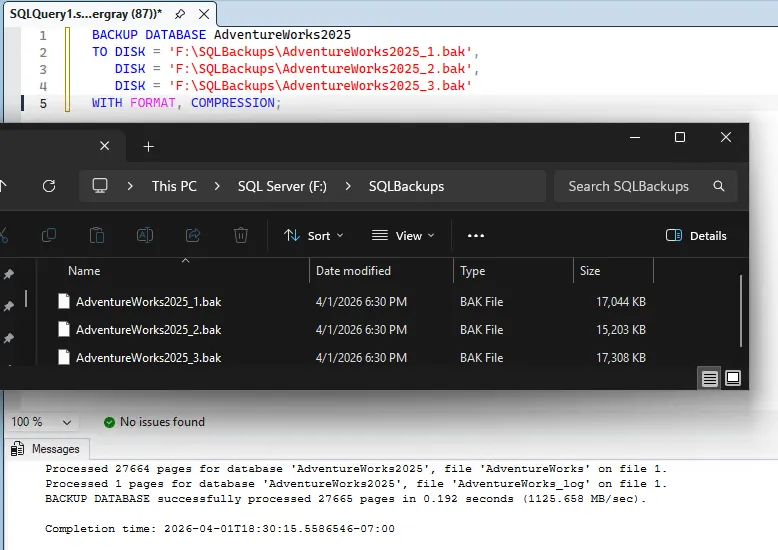
SQL Server distributes the data across the files roughly evenly. All parts are required for restore. This also parallelizes disk I/O, which can make the backup itself faster.
To restore:
RESTORE DATABASE AdventureWorks2025
FROM DISK = 'F:\SQLBackups\AdventureWorks2025_1.bak',
     DISK = 'F:\SQLBackups\AdventureWorks2025_2.bak',
     DISK = 'F:\SQLBackups\AdventureWorks2025_3.bak'
WITH RECOVERY;
When to use this: You control the backup job and can re-run it. You want the split to happen at backup time, not as a separate step.
Limitation: You need to decide the number of files up front. If you want each part under, say, 120 GB for a 2 TB backup, you would need at least 18 files to get under that threshold.
Ola Hallengren
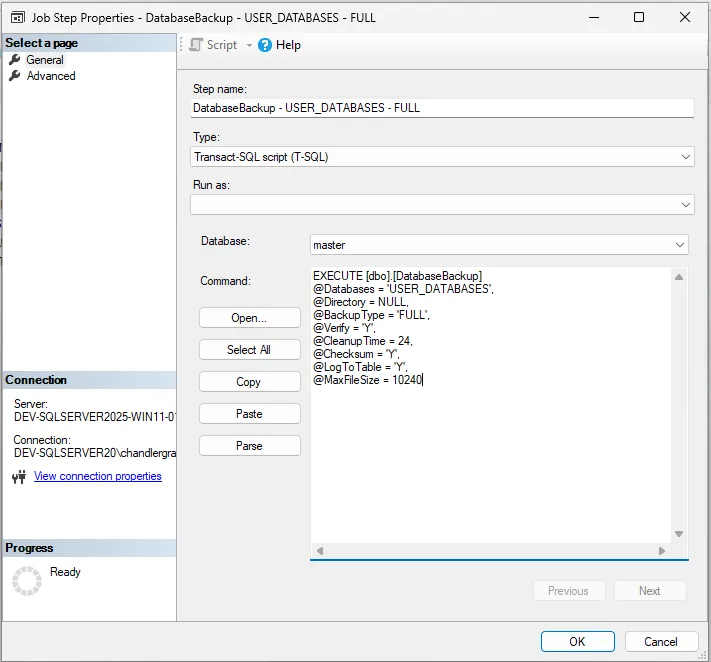
If you use Ola Hallengren’s maintenance solution you can do this a couple of ways:
- If you’re not overly picky about the actual size of the database files and want them backed up to a specific number of files, you can modify the backup job to include
@NumberOfFiles = nwherenequals the number of files you want to backup to. - If you are picky about the max size of each of the files, you can configure that in the backup job by setting
@MaxFileSize = nwheren, in this case, equals the maximum size of the file in MB.
PowerShell Byte-Level Split
Sometimes you don’t have permissions to modify the existing database backup commands, so if the backup already exists as a single file, split it after the fact with PowerShell.
Do not modify the existing/only copy of the production server’s backup. Always duplicate the backup to a different workstation before splitting it.
PowerShell Split
$file = 'F:\SQLBackups\AdventureWorks2025.bak'
$chunkSize = 16000KB ## Set file size here
$bufferSize = 400KB
$buffer = New-Object byte[] $bufferSize
$reader = [IO.File]::OpenRead($file)
$part = 1
$bytesLeft = $chunkSize

$writer = [IO.File]::OpenWrite("$file.part$part")
while (($read = $reader.Read($buffer, 0, [math]::Min($bufferSize, $bytesLeft))) -gt 0) {
    $writer.Write($buffer, 0, $read)
    $bytesLeft -= $read
    if ($bytesLeft -le 0) {
        $writer.Close()
        $part++
        $bytesLeft = $chunkSize
        $writer = [IO.File]::OpenWrite("$file.part$part")
    }
}
$writer.Close()
$reader.Close()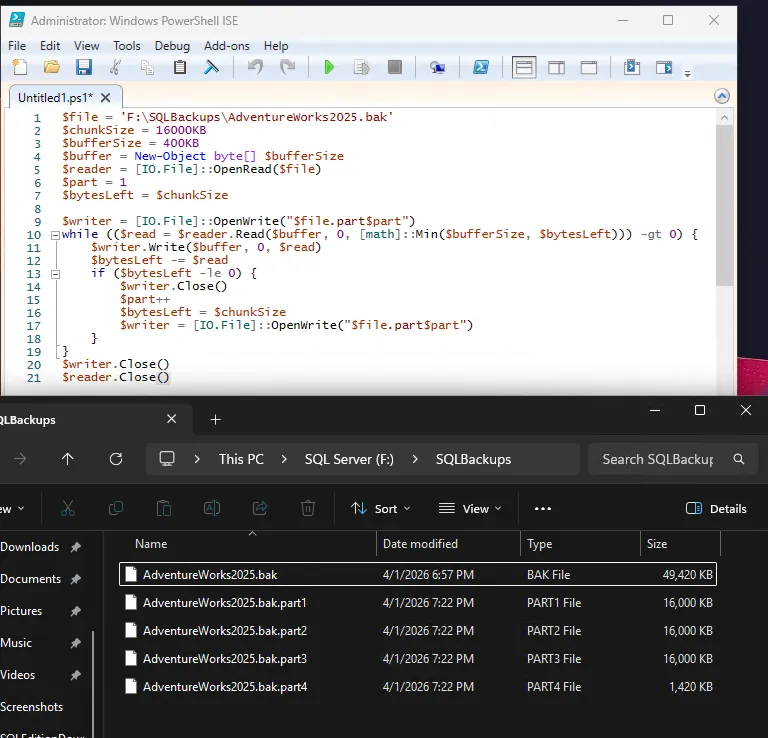
PowerShell Reassemble
On the destination, concatenate the parts back together:
$bufferSize = 400KB
$buffer = New-Object byte[] $bufferSize
$out = [IO.File]::OpenWrite('F:\SQLBackups\AdventureWorks2025_unchunked.bak')
Get-ChildItem 'F:\SQLBackups\AdventureWorks2025.bak.part*' | Sort-Object Name | ForEach-Object {
    $in = [IO.File]::OpenRead($_.FullName)
    while (($read = $in.Read($buffer, 0, $bufferSize)) -gt 0) {
        $out.Write($buffer, 0, $read)
    }
    $in.Close()
}
$out.Close()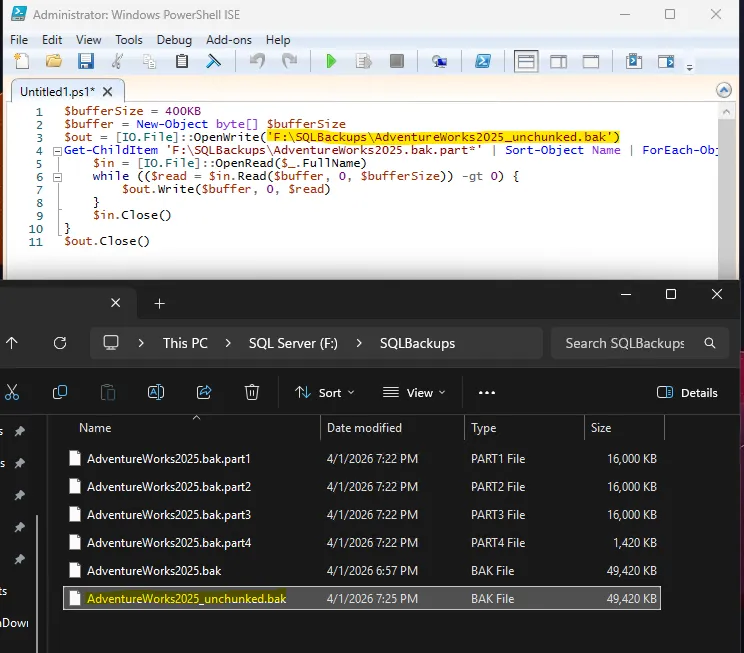
$bufferSize controls how many bytes are read from disk into memory per Read() call — it has no effect on chunk boundaries, which are determined solely by $chunkSize. A larger buffer reduces the number of syscalls and improves throughput on large files: at 64MB, a 1 TB file requires ~16,000 read/write pairs per chunk rather than ~256,000 at 4KB. For small files the difference is negligible. Scale $bufferSize up for production use; just keep it well below available RAM and no larger than $chunkSize.
When to use this: The backup already exists as one file and you don’t want to install additional tools.
Limitation: Could be considered more complex than the other two options.
7-Zip Split Archive
7-Zip can split a file into volumes without compression using store mode:
7-Zip Split
7-Zip’s downloads can be found on their official download page.
& "C:\Program Files\7-Zip\7z.exe" a -v16m -mx0 F:\SQLBackups\AdventureWorks2025.7z F:\SQLBackups\AdventureWorks2025.bak-v16m sets each volume to 16 MB. -mx0 disables compression (store mode), so the file is split as-is with no CPU overhead. Output files are named AdventureWorks2025.7z.001, AdventureWorks2025.7z.002, etc.
7-Zip Reassemble
& "C:\Program Files\7-Zip\7z.exe" x F:\SQLBackups\AdventureWorks2025.7z.001 -oF:\SQLBackups\Point the extraction at the .001 file. It will loop through the directory to find all parts. Because of this, all parts must be in the same directory.
When to use this: You have an existing backup file, 7-Zip is available, and you want a simple split with a standard archive format the destination can unpack.
If you do want compression, remove the -mx0 flag. For .bak files this is usually not worth the time and CPU cost on a multi-terabyte file.
Which Method to Pick
| Criteria | SQL Server Split | PowerShell | 7-Zip |
|---|---|---|---|
| Requires re-running backup | Yes | No | No |
| Adds compression | WITH COMPRESSION | No | Optional (off by default with -mx0) |
| Extra tooling needed | None | None | 7-Zip |
| Works on non-SQL files | No | Yes | Yes |
For a multi-terabyte SQL Server backup going over a constrained SFTP link, 7-Zip with -mx0 is usually the best fit. The split is handled in a single command with no compression overhead. If you can’t install 7-Zip on the source, PowerShell works with no dependencies. If you can re-run the backup, the native SQL Server split avoids post-processing entirely. Only the SQL Server split guarantees the parts are written in a way that SQL Server can read them directly, but all three methods produce files that can be reassembled into a valid backup. With the exception of the native split, there’s no limitation to the file type, so you can use these methods to split and reassemble any large file, not just SQL Server backups.