I logged into a Windows server today to change the startup parameters and was met with this error:
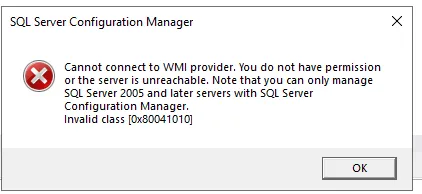
“Cannot connect to WMI provider. You do not have permissions or the server is unreachable. Note that you can only manage SQL Server 2005 and later servers with SQL Server Configuration Manager Invalid class [0x80041010]”
Configuration Manager uses Windows Management Instrumentation (WMI) to get the status of the SQL Server services, and it couldn’t connect. The first sentence of the error mentions permissions, but the code at the end is the useful part. Microsoft’s article on this error says both of its possible codes mean “the provider registration is missing rather than that access was denied.” Invalid class specifically means the WMI namespace for SQL Server is there, but the classes Configuration Manager expects aren’t registered in it. The same article says that registration is removed when an instance of SQL Server is uninstalled, including an instance of a different version on the same machine.
To fix it, recompile the provider with mofcomp.
I opened an elevated Command Prompt and changed to the SQL Server shared directory for my version. It was a SQL Server 2022 build, so I used:
cd "C:\Program Files (x86)\Microsoft SQL Server\160\Shared"Before recompiling anything, I ran this to find the .mof file in the directory:
dir *.mofThe file name is different between versions of SQL Server. I’d seen sqlmgmproviderxpsp2up.mof in a different doc, and my folder had sqlmgmprovider.mof. Microsoft’s article has a table of both. SQL Server 2022 (folder 160) and 2025 (folder 170) use sqlmgmprovider.mof, and 2005 through 2019 use sqlmgmproviderxpsp2up.mof. If you aren’t sure which versions are installed, the article also gives a command that lists the .mof files across every version folder:
dir "%programfiles(x86)%\Microsoft SQL Server\*.mof" /sIf no .mof file shows up at all, there’s nothing to recompile, and you’re left with running a repair on the SQL Server installation instead.
Once I knew which file I had, this is what I ran:
mofcomp sqlmgmprovider.mofAt this point the problem was fixed for me. Microsoft’s steps do include restarting the WMI service for the change to take effect, so if the error is still there, restart it with this in an elevated PowerShell session:
Get-Service winmgmt | Restart-Service -ForceRestarting the WMI service only takes a few seconds, and from what I found, it doesn’t affect SQL Server, active connections, or running queries. What’s at risk is anything polling through WMI at that moment. Some monitoring agents, PowerShell calls and performance counters all use WMI, so on a production server I’d do it during a low-activity or maintenance window.