Someone came to me today asking for tips on migrating a large database backup from one server to another. The way I’d do it is to break the database backup into parts and upload them via an SFTP server or cloud storage, anywhere that both servers can access. There are three reasons why I think splitting backups into multiple files is better when you’re dealing with multi-terabyte database backup transfers.
- Parallelism - Many SFTP and cloud storage services allow multiple uploads at once. With one large file, unless your network connection is the bottleneck, you could be waiting ten times as long or more than you would with several files going at once.
- Resumability - I’ve written in the past how network connections can be unreliable, so having your backup in chunks means if your VPN connection drops, you won’t have to restart your upload from the beginning.
- Size restrictions - Some corporate SFTPs have size limitations for single file uploads. Splitting gets around those limits if your backups exceed them.
I’ll cover three ways to do it: SQL Server’s native split, PowerShell, and 7-Zip.
SQL Server Native Split Backup
SQL Server can write a single backup across multiple files natively. Add multiple DISK targets to the BACKUP command:
BACKUP DATABASE AdventureWorks2025
TO DISK = 'F:\SQLBackups\AdventureWorks2025_1.bak',
   DISK = 'F:\SQLBackups\AdventureWorks2025_2.bak',
   DISK = 'F:\SQLBackups\AdventureWorks2025_3.bak'
WITH FORMAT, COMPRESSION;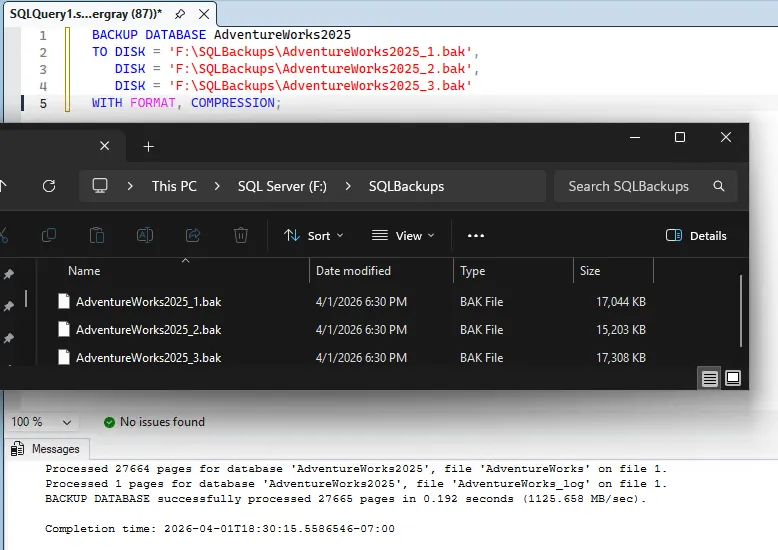
SQL Server distributes the data across the files roughly evenly. All parts are required for restore. This also parallelizes disk I/O, which can make the backup itself faster.
That “all parts are required” line is worth taking seriously. Splitting into 18 files gives you 18 files that all have to arrive intact, and one corrupted or missing part leaves you without a usable backup. That holds for all three methods here.
Microsoft’s documentation calls this a media set rather than a split. Each DISK target is a media family, and the media sets page says that when there’s more than one family, “the backup set is distributed among them.” For a restore from disk, “all the media families must be concurrently mounted,” which is the documented way of saying you need every file at once. The number of devices is also fixed once the media set exists, so later backups to the same media set have to use the same number of files.
Before deleting anything on the source, check the file count and sizes on the destination. For the native split, RESTORE VERIFYONLY against the full set of DISK targets checks that the backup set is complete and readable.
To restore:
RESTORE DATABASE AdventureWorks2025
FROM DISK = 'F:\SQLBackups\AdventureWorks2025_1.bak',
     DISK = 'F:\SQLBackups\AdventureWorks2025_2.bak',
     DISK = 'F:\SQLBackups\AdventureWorks2025_3.bak'
WITH RECOVERY;
When to use this: You control the backup job and can re-run it. You want the split to happen at backup time, not as a separate step.
Limitation: You need to decide the number of files up front. If you want each part under, say, 120 GB for a 2 TB backup, you would need at least 18 files to get under that threshold.
Ola Hallengren
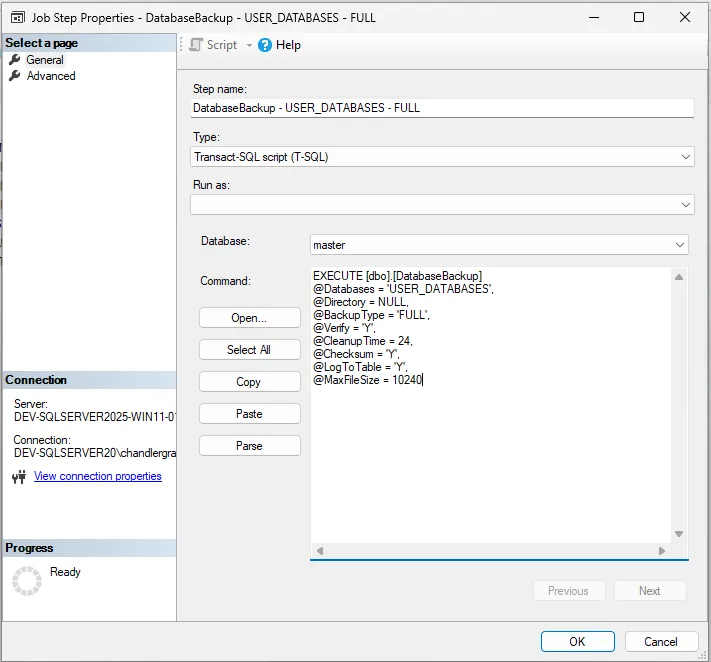
If you use Ola Hallengren’s maintenance solution you can do this a couple of ways:
- If you don’t mind exactly how big each file is and just want a specific number of them, add
@NumberOfFiles = nto the backup job, wherenis the number of files you want to back up to. - If you care about the maximum size of each file, set
@MaxFileSize = nin the backup job instead, wherenis the maximum file size in MB.
PowerShell Byte-Level Split
Sometimes you don’t have permission to change the backup job. If the backup already exists as a single file, you can split it after the fact with PowerShell.
Don’t modify the only copy of the production server’s backup. Copy it to a different workstation before splitting it.
PowerShell Split
$file = 'F:\SQLBackups\AdventureWorks2025.bak'
$chunkSize = 16000KB ## Set file size here
$bufferSize = 400KB
$buffer = New-Object byte[] $bufferSize
$reader = [IO.File]::OpenRead($file)
$part = 1
$bytesLeft = $chunkSize

$writer = [IO.File]::OpenWrite("$file.part$part")
while (($read = $reader.Read($buffer, 0, [math]::Min($bufferSize, $bytesLeft))) -gt 0) {
    $writer.Write($buffer, 0, $read)
    $bytesLeft -= $read
    if ($bytesLeft -le 0) {
        $writer.Close()
        $part++
        $bytesLeft = $chunkSize
        $writer = [IO.File]::OpenWrite("$file.part$part")
    }
}
$writer.Close()
$reader.Close()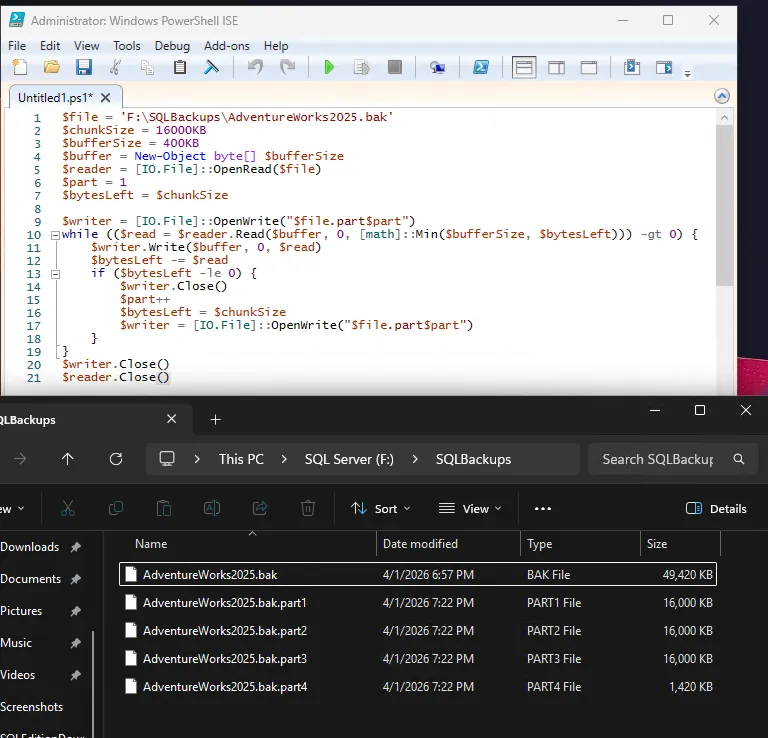
PowerShell Reassemble
On the destination, concatenate the parts back together:
$bufferSize = 400KB
$buffer = New-Object byte[] $bufferSize
$out = [IO.File]::OpenWrite('F:\SQLBackups\AdventureWorks2025_unchunked.bak')
Get-ChildItem 'F:\SQLBackups\AdventureWorks2025.bak.part*' | Sort-Object Name | ForEach-Object {
    $in = [IO.File]::OpenRead($_.FullName)
    while (($read = $in.Read($buffer, 0, $bufferSize)) -gt 0) {
        $out.Write($buffer, 0, $read)
    }
    $in.Close()
}
$out.Close()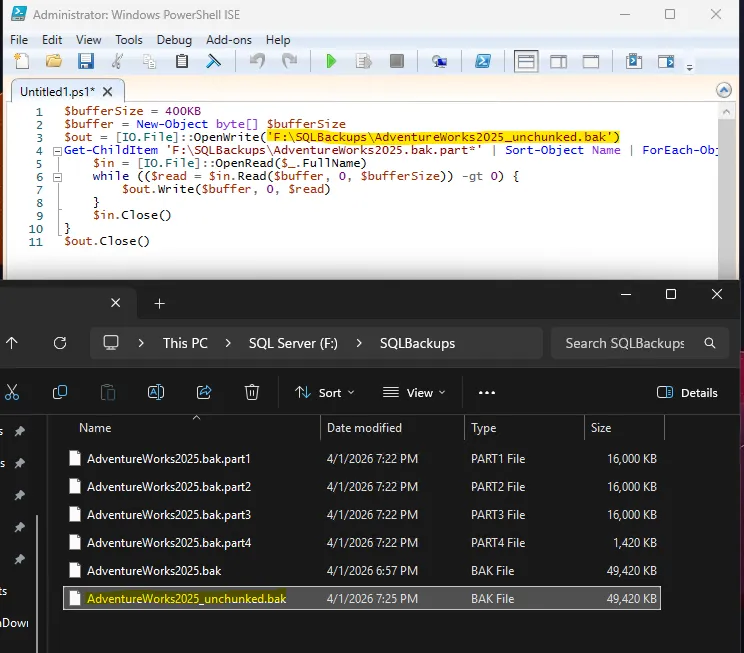
$bufferSize controls how many bytes are read from disk into memory per Read() call. It has no effect on chunk boundaries, which are set by $chunkSize. A larger buffer means fewer read and write calls. For a 1 TB file, the script’s 400KB buffer works out to about 2.7 million reads, while a 4KB buffer would take about 268 million. In the split script, each read is also capped at what’s left of the current chunk, so a buffer larger than $chunkSize doesn’t help there. Keep it well below available RAM.
When to use this: The backup already exists as one file and you don’t want to install additional tools.
Limitation: It’s more code to maintain than the other two options.
7-Zip Split Archive
7-Zip can split a file into volumes without compression using store mode:
7-Zip Split
7-Zip is on its official download page.
& "C:\Program Files\7-Zip\7z.exe" a -v16m -mx0 F:\SQLBackups\AdventureWorks2025.7z F:\SQLBackups\AdventureWorks2025.bak-v16m sets each volume to 16 MB. -mx0 disables compression (store mode), so the file is split as-is with no CPU overhead. Output files are named AdventureWorks2025.7z.001, AdventureWorks2025.7z.002, etc.
7-Zip Reassemble
& "C:\Program Files\7-Zip\7z.exe" x F:\SQLBackups\AdventureWorks2025.7z.001 -oF:\SQLBackups\Point the extraction at the .001 file. 7-Zip finds the rest of the parts on its own, so they all need to be in the same directory.
When to use this: You have an existing backup file, 7-Zip is available, and you want a simple split with a standard archive format the destination can unpack.
If you do want compression, remove the -mx0 flag. For .bak files this is usually not worth the time and CPU cost on a multi-terabyte file.
Which Method to Pick
| Criteria | SQL Server Split | PowerShell | 7-Zip |
|---|---|---|---|
| Requires re-running backup | Yes | No | No |
| Adds compression | WITH COMPRESSION | No | Optional (off by default with -mx0) |
| Extra tooling needed | None | None | 7-Zip |
| Works on non-SQL files | No | Yes | Yes |
For a multi-terabyte SQL Server backup going over a constrained SFTP link, 7-Zip with -mx0 is usually the best fit. The split is handled in a single command with no compression overhead. If you can’t install 7-Zip on the source, PowerShell works with no dependencies. If you can re-run the backup, the native SQL Server split avoids post-processing entirely. Only the SQL Server split guarantees the parts are written in a way that SQL Server can read them directly, but all three methods produce files that can be reassembled into a valid backup. With the exception of the native split, there’s no limitation to the file type, so you can use these methods to split and reassemble any large file, not just SQL Server backups.
One thing this post doesn’t test is how the PowerShell and 7-Zip splits behave on a backup that’s already compressed with WITH COMPRESSION. Both work on raw bytes rather than on anything SQL Server understands, so the reassembled file should be identical to the original either way, but that’s reasoning rather than a result.