On a recent cloud migration, I needed to move one year of data from one table on a client’s servers to another SQL Server hosted in a VM in the cloud. The table already existed on the destination, so I only needed to move the data. The problem was that the VM we were moving into didn’t have enough space to restore the entire database, so a full BACKUP/RESTORE/DELETE wasn’t an option. I used bcp because it didn’t require installing anything on the client’s server.
The first thing I ran into was a certificate chain error when bcp connected to the local instance. The fix was the -u flag, which tells bcp to trust the server certificate. I added it to every command after that. According to the bcp documentation, -u needs bcp version 18 or later, which ships with SQL Server 2025, and bcp -v shows which version you have.
Next, I generated a format file. It maps the columns in the export to the columns in the destination table, and it’s worth doing first so you can inspect it before any data moves.
bcp AdventureWorks2022.Person.Person format nul -S localhost -T -n -f person.fmt -uIf the format file exports successfully, the CMD window doesn’t print anything. You can review it by opening the .fmt file in Notepad, and it should look something like this:
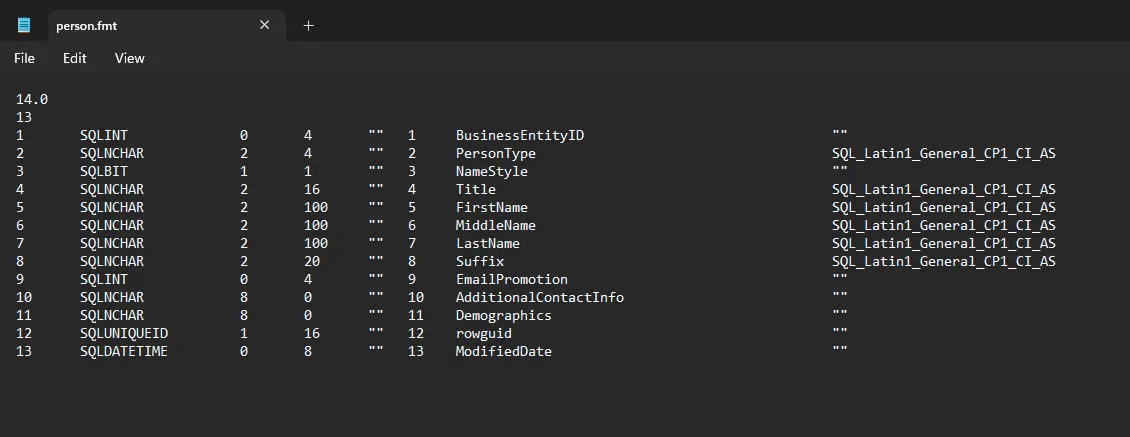
If you use a three-part name like AdventureWorks2022.Person.Person, don’t also pass -d with the database name. bcp will error, telling you that you can’t specify the database name twice.
Before running the full year, I tested with one week to make sure the format file was right and the row counts matched.
bcp "SELECT * FROM AdventureWorks2022.Person.Person WHERE ModifiedDate >= '2013-01-01' AND ModifiedDate < '2013-01-08'" queryout person_test.bcp -S localhost -T -f person.fmt -u
Once that checked out, I ran the full year:
bcp "SELECT * FROM AdventureWorks2022.Person.Person WHERE ModifiedDate >= '2013-01-01' AND ModifiedDate < '2014-01-01'" queryout person_2013.bcp -S localhost -T -f person.fmt -u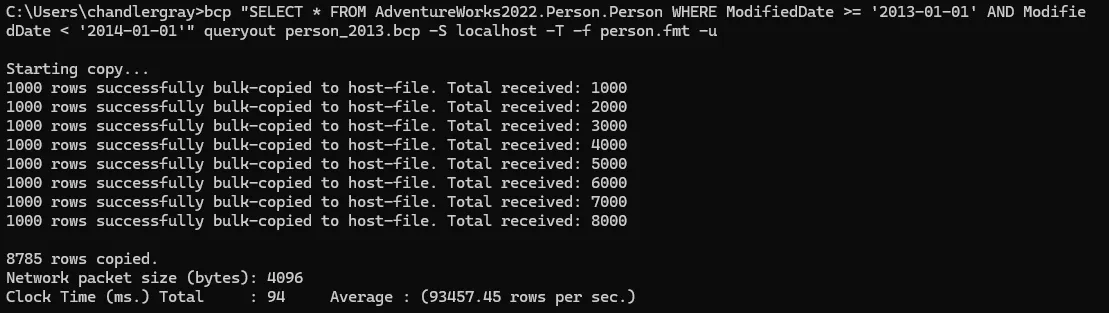
I’m always pleasantly surprised by how fast bcp is. This export of 27,000 rows took about 3 seconds, and I’ve had exports of millions of rows take just a few minutes.
I copied the .bcp and .fmt files to the destination machine and ran the import. The table had an identity column and I needed to keep the original values, so I passed -E. I also set the destination database to simple recovery beforehand to keep log growth manageable.
-E has a permissions requirement worth knowing about if you’re working with a limited account on someone else’s server. The documentation says a bcp in “minimally requires SELECT and INSERT permissions on the target table,” and that ALTER TABLE is also required when you use -E to keep identity values. The same list has two other cases that need ALTER TABLE: the table has constraints and you haven’t passed the CHECK_CONSTRAINTS hint, or it has triggers and you haven’t passed FIRE_TRIGGERS.
bcp AdventureWorks2022_dest.Person.Person in person_2013.bcp -S localhost -T -f person.fmt -u -E -b 10000 -e person_errors.txt -q
Some guides recommend -h TABLOCK to reduce lock overhead during bulk inserts. In my case the database wasn’t actively being used during the migration, so it didn’t matter either way.
The -b 10000 sets a batch size. By default, bcp imports every row in the file as one batch, so a failure near the end rolls back the whole import. With a batch size set, each batch is its own transaction, and the documentation says that “if the transaction for any batch fails, only insertions from the current batch are rolled back.” Batches that already committed stay in the table.
After the import, I ran SELECT COUNT(*) with the same WHERE clause on both servers to confirm the numbers matched, checked that the error file was empty, and ran UPDATE STATISTICS on the destination table.
I don’t have to do this very often, but it’s nice to have in the toolkit for when I do.
Flags I Used
| Flag | What it does |
|---|---|
-S |
Server and instance name |
-T |
Windows integrated auth |
-n |
Native binary format. Only needed when generating the format file. Omit it when using -f, or bcp warns that -f overrides it |
-f |
Path to the format file |
-E |
Keep identity values from the file instead of generating new ones |
-b |
Batch size in rows, so each batch commits as its own transaction |
-e |
File to write rejected rows and error reasons to |
-h |
Table hints passed to the bulk insert operation |
-q |
Runs SET QUOTED_IDENTIFIER ON for the connection. Needed for names with spaces or quotes, and inserts fail without it on tables with indexes on computed columns or indexed views |
-u |
Trust the server certificate (bcp 18 or later) |
The full flag reference is in the bcp documentation.